
What Size Desk Do I Need? Width, Depth and Legroom in 5 Steps
Depth sets your viewing distance, so start at 24 inches deep (30 for big screens). Width follows your monitors: two 27-inch screens alone are about 47 inches wide.
 By HomeOfficeAid
Updated November 25, 2026

What size desk do I need? For most home offices, the answer starts at about 24 inches deep and somewhere between 40 and 60 inches wide, depending on how many screens you use. Depth sets how far away your monitor can sit, and OSHA’s computer workstation guidance says the screen should be at least 20 inches from your eyes. Width follows your equipment: one monitor and a keyboard fit on a much smaller top than two 27-inch screens. Underneath, you need clear legroom, which OSHA puts at a minimum of 20 inches wide, 17 inches deep at the knee and 24 inches deep at the feet.
This is a research-based guide built from OSHA’s computer workstation eTool, the University of California’s ergonomics requirements for work surfaces, Duke University’s computer workstation standards and the 2010 ADA Standards for Accessible Design. Those documents were written for offices, so we translate them into a home setting and show the math for working out your own size. If you already know your numbers and are comparing frames, our guide to the best standing desks lists the top size of each pick, from a 32 by 19 inch compact desk to a 60 by 24 inch desk for two monitors.
Quick Answer: Desk Size by Setup
Use this table as a starting point, not a rule, then check it against the steps below. The width ranges for monitor setups come from adding up screen widths (see the calculation further down) and the UC guidance; the depth figures come from OSHA, Duke and UC.
| Your setup | Width to look for | Depth to look for | Why |
|---|---|---|---|
| Laptop only, occasional use | About 32 to 40 inches | At least 20 inches | Room for the laptop and a mouse; compact desks in this range are sold for small spaces |
| Laptop plus one external monitor | About 46 to 55 inches | 24 to 30 inches | UC lists 46 inches as its minimum top width for computer-only workstations |
| Two 24-inch monitors | 55 to 60 inches | 24 to 30 inches | The two screens alone are about 42 inches wide |
| Two 27-inch monitors | 60 inches or more | At least 30 inches, or a monitor arm | The screens alone are about 47 inches wide, and UC’s mixed-use minimum is 60 inches |
| One 34-inch ultrawide | About 48 to 60 inches | At least 30 inches, or a monitor arm | The screen alone is about 31 inches wide, and a larger screen benefits from extra depth |
| Computer plus paperwork | 60 inches or more, or an L-shape | 30 inches | UC’s mixed-use checklist asks for 60 inches wide and 30 inches deep |
What the Ergonomics Guidelines Say
There is no single legal size for a home desk, but several institutions publish the dimensions they buy to, and they line up closely. The UC Ergonomics Work Group requirements (2016) were written to fit about 90 percent of its staff, and Duke’s standards are based on the ANSI/HFES 100-2007 standard for computer workstations.
| Dimension | Guideline | Source |
|---|---|---|
| Top width, computer-only desk | 46 inches or more | University of California |
| Top width, computer plus paperwork and phone | At least 60 inches of usable surface | University of California |
| Top depth, computer desk | At least 30 inches | University of California |
| Top depth, any computer workstation | Minimum 24 inches, for viewing distance and keyboard tray room | Duke University |
| Monitor viewing distance | At least 20 inches; 20 to 40 inches preferred | OSHA |
| Legroom width | At least 20 inches | OSHA |
| Legroom depth | At least 17 inches at the knee and 24 inches at the foot | OSHA |
| Fixed desk height | 28.5 inches minimum if not adjustable | University of California |
| Sit-stand range | 22 to 48 inches preferred (UC); 22 to 50 inches (Duke) | UC and Duke |
Two points stand out for home buyers. First, depth is easy to overlook: some compact desks, including the 32 by 19 inch and 40 by 20 inch models in our standing desk guide, are shallower than Duke’s 24-inch minimum, which leaves little room between you and the screen. Second, the institutional width figures assume a full-size monitor, keyboard and some paperwork; a laptop-only corner can be smaller, as long as you accept less space to spread out.
How to Find Your Desk Size in 5 Steps
1. List everything that will live on the desk
Write down the monitors, laptop, keyboard, mouse, speakers, lamp, printer and any paperwork you keep out while you work. Herman Miller’s buying guide frames the question the same way: think about the type of work you do and the equipment and supplies you use daily. OSHA’s desk page warns that limited space on the work surface may cause users to place components and devices in undesirable positions, such as a mouse perched off to the side or a monitor shoved into a corner.
2. Work out the width from your screens
Add up the width of your screens, then leave room on either side for a lamp, speakers or a notepad. The quickest way to get a screen’s width is the manufacturer’s spec sheet, which lists the overall width including the bezel. If you only know the diagonal size, you can estimate the width of the visible screen with a little geometry: for a standard 16:9 monitor, width is about 0.87 times the diagonal, and for a 21:9 ultrawide it is about 0.92 times the diagonal.
| Screen | Approximate screen width | Two side by side |
|---|---|---|
| 24-inch, 16:9 | 20.9 inches | 41.8 inches |
| 27-inch, 16:9 | 23.5 inches | 47.1 inches |
| 32-inch, 16:9 | 27.9 inches | 55.8 inches |
| 34-inch ultrawide, 21:9 | 31.2 inches | Not usually paired |
These figures are calculated from the diagonal and aspect ratio, not taken from any one product, and the real monitor is a little wider once you add the bezel. Three 27-inch monitors come to about 71 inches of screen alone, so a triple setup usually needs a desk of 72 inches or more, or side screens angled in on an L-shaped or corner desk. Duke’s standards recommend placing dual monitors side by side, as close as possible, with the center between the two aligned with the middle of the keyboard, which is the layout our guide on how to set up dual monitors walks through.
3. Work out the depth from your viewing distance
Depth decides how far the screen can sit from your eyes. OSHA says the preferred viewing distance is generally between 20 and 40 inches, and that you should provide adequate desk space between the user and the monitor. Duke sets a 24-inch minimum depth for the same reason, and UC asks for 30 inches on computer desks. To check a desk you are considering, add the distance from the desk’s front edge to your eyes when you sit back in your chair to the distance from the front edge to where the screen would sit; if the total is under 20 inches, the desk is too shallow for that monitor on its stand.
A shallow desk is not always a deal breaker. OSHA suggests pulling the desk away from the wall to make room for the back of the monitor, putting the monitor in a corner where there is more depth, or using a flat-panel display, which takes up less room. A monitor arm, which clamps to the back edge and holds the screen over empty space, does the same job; our guide to the best monitor arms lists the desk thickness each clamp fits. For the right distance for your own eyes and screen size, see how far your monitor should be from your eyes.
4. Check the legroom underneath
The top is only half of the size question. OSHA’s minimum clearance under the work surface is 20 inches wide, 17 inches deep at knee level, 24 inches deep at foot level and 4 inches high at the foot. UC asks for at least 20.5 inches wide under a computer-only desk and prefers 30 inches or wider, the width the ADA Standards set for knee clearance. Look at where the legs, crossbars and drawers sit on the spec drawing, not just the overall size. OSHA also advises against storing items such as a CPU under the desk where they limit space for legs and feet, and notes that removing the center drawer of a conventional desk can add thigh clearance.
5. Match the height to you and your chair
If the desk does not adjust, UC’s minimum is 28.5 inches. Duke’s table of heights for built-in, non-adjustable workstations gives 26 to 27 inches for a seated computer workstation and 28 to 30 inches for a seated writing workstation, which shows why one fixed height rarely suits every task. OSHA says clearance for the legs under the desktop should generally be between 20 and 28 inches high. A height-adjustable desk solves most of this: UC prefers a range of 22 to 48 inches for sit-stand surfaces, and Duke describes 22 to 50 inches as generally needed for seated and standing elbow height. Our standing desk height guide shows how to find your own sitting and standing numbers, and the chair has to fit too; if you are short on floor space, our picks for the best small office chairs list seat widths and footprints.
How Much Room Do You Need Around the Desk?
A desk that fits the wall can still feel cramped if there is no room to pull the chair back. Before you buy, mark the desk’s footprint on the floor with painter’s tape and sit in your chair inside it. A useful reference comes from the 2010 ADA Standards for Accessible Design, which are written for public buildings rather than homes: they set a clear floor space of 30 by 48 inches for a wheelchair user at a work surface and a clear width of 36 inches for walking routes. If your chair, a door swing or a walkway cannot fit behind the desk with roughly that much space, a shallower desk, a corner unit or a different spot in the room may work better. Our home office ideas cover layouts for spare rooms, closets and other tight spaces.
Is an L-Shaped or Corner Desk Worth It?
An L-shaped or corner desk adds surface without adding much wall length. OSHA notes that corner units provide additional depth and workspace, which helps with large monitors. Duke’s standards make an important distinction, though. For people who write and use a computer at the same time, Duke says a corner configuration, with the keyboard pushed into the corner, is not appropriate. It recommends an L-shape with the keyboard on a straight section directly in front of you and a writing return on the side of your dominant hand: right return for right-handed people and left return for left-handed people. If you buy an L-shaped desk, check whether the return can be set on either side.
Standing Desks in Three Common Sizes
If you have settled on a size and want a desk that also adjusts in height, these three from our guide to the best standing desks cover the range in this article: a 32 by 19 inch desk for a laptop in a tight corner, a 40 by 20 inch desk for a laptop and one small monitor, and a 60 by 24 inch desk with room for two monitors. Check the height range and the legroom drawing on each listing against your own measurements before you buy.
Pros
- Fits small spaces
- 4 memory presets
- Holes for optional casters
Cons
- Two-piece top with a joint
- Room for a laptop or one small monitor

Pros
- Narrow 19.7 in depth
- One-piece top, 176 lb capacity
- 3 memory presets
Cons
- Shallow for a desktop monitor
- 3 presets only
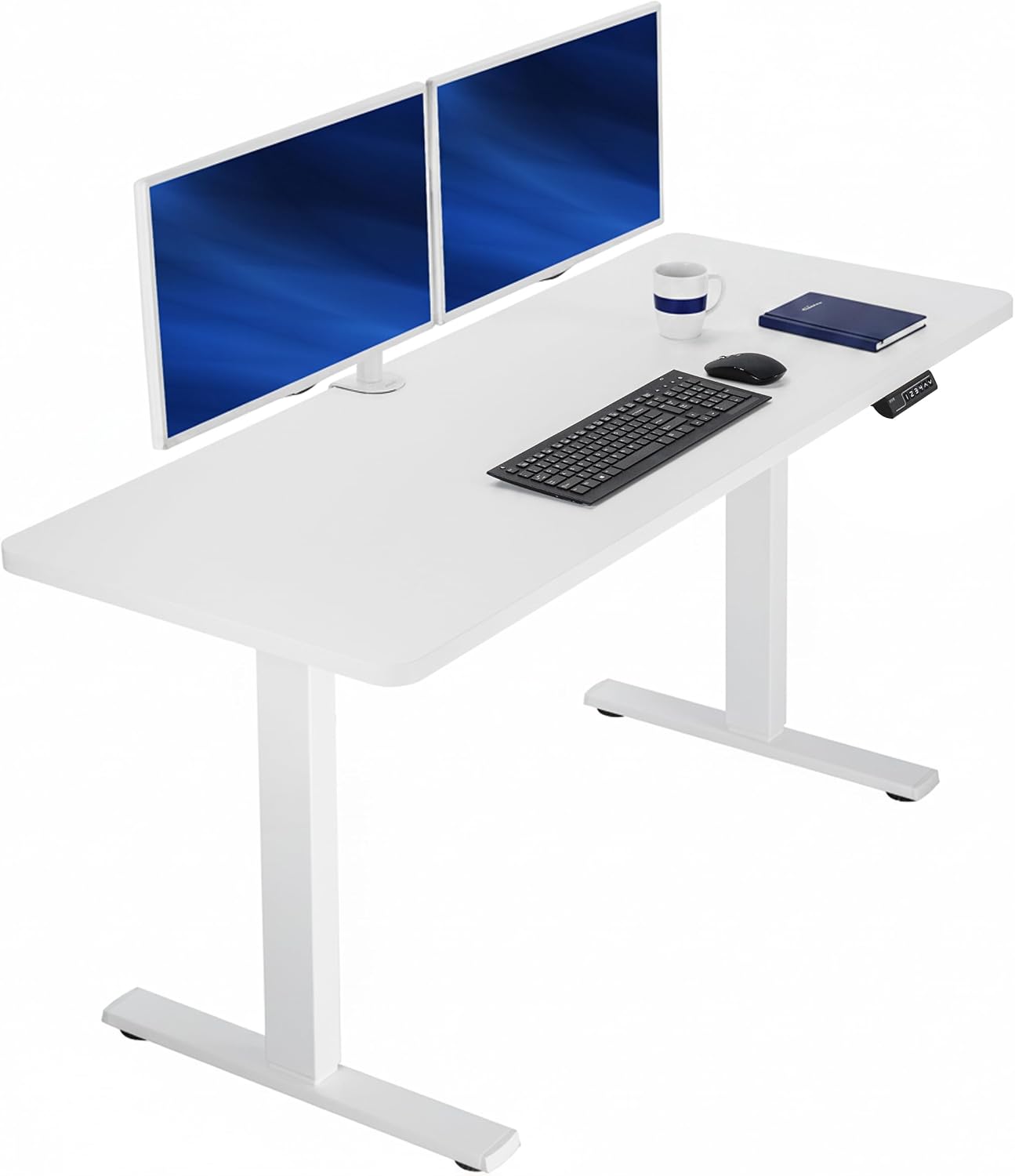
Pros
- Wide 59 x 23.6 in one-piece top
- 220 lb capacity
- 4 memory presets
Cons
- Lowest height is 29.3 in
- Particle board top
Frequently Asked Questions
What is a standard desk size?
There is no single standard, but office ergonomics guidelines cluster around 46 to 60 inches wide and 24 to 30 inches deep. The University of California asks for at least 46 inches wide for computer-only desks, 60 inches for mixed computer and paper work, and 30 inches deep; Duke sets a 24-inch minimum depth.
What size desk do I need for two monitors?
For two 24-inch monitors, the screens alone are about 42 inches wide, so 55 to 60 inches gives room on the sides. For two 27-inch monitors, the screens are about 47 inches wide, so look at 60 inches or more. Check the spec sheets for overall width including bezels.
Is a 20-inch deep desk too shallow?
It can be for a full-size monitor. OSHA wants at least 20 inches from your eyes to the screen, and Duke sets 24 inches as the minimum desk depth. A 20-inch deep desk works better for a laptop, or with a monitor arm that holds the screen at the back edge.
How much legroom should a desk have?
OSHA’s minimum is 20 inches wide, 17 inches deep at the knee and 24 inches deep at the foot. UC prefers at least 30 inches of width under a computer desk.
Is 48 inches wide enough for a desk?
For one monitor, a laptop and a keyboard, 48 inches is usually enough and is above UC’s 46-inch minimum for computer-only desks. For two 27-inch monitors or regular paperwork, it is tight; 60 inches or an L-shape gives more room.
Conclusion
Pick depth first, because it controls viewing distance: aim for at least 24 inches, and 30 inches for larger monitors, unless you plan to use a monitor arm. Then size the width to your screens with the calculation above, add room for the things you reach for, and confirm the legroom and height on the spec drawing. Mark the footprint on the floor before you order, and leave space to pull the chair back. When the numbers are settled, the cable routing in our standing desk cable management guide helps keep a larger desk tidy.
Sources
- OSHA, Computer Workstations eTool: Desks
- OSHA, Computer Workstations eTool: Work Space
- OSHA, Computer Workstations eTool: Monitors
- University of California Ergonomics Work Group, Ergonomics Requirements: Work Surfaces (June 17, 2016)
- Duke University Ergonomics Division, Standards for Computer Workstations at Duke
- U.S. Access Board, 2010 ADA Standards for Accessible Design (sections 305.3, 306.3 and 403.5.1)
- Herman Miller, 6 Things to Consider When Buying a Home Office Desk
- Screen widths calculated from diagonal size and aspect ratio (16:9 and 21:9)
About the author

HomeOfficeAid writes reviews and buying guides for HomeOfficeAid.